Product / Features
Chart pattern scanning,
from discovery to review.
Discover instruments, screen stocks, monitor chart patterns, and review each alert against the chart and company context. These are captures from the application, with current limits called out where relevant.
01 / Market scans
Find markets worth a closer look.
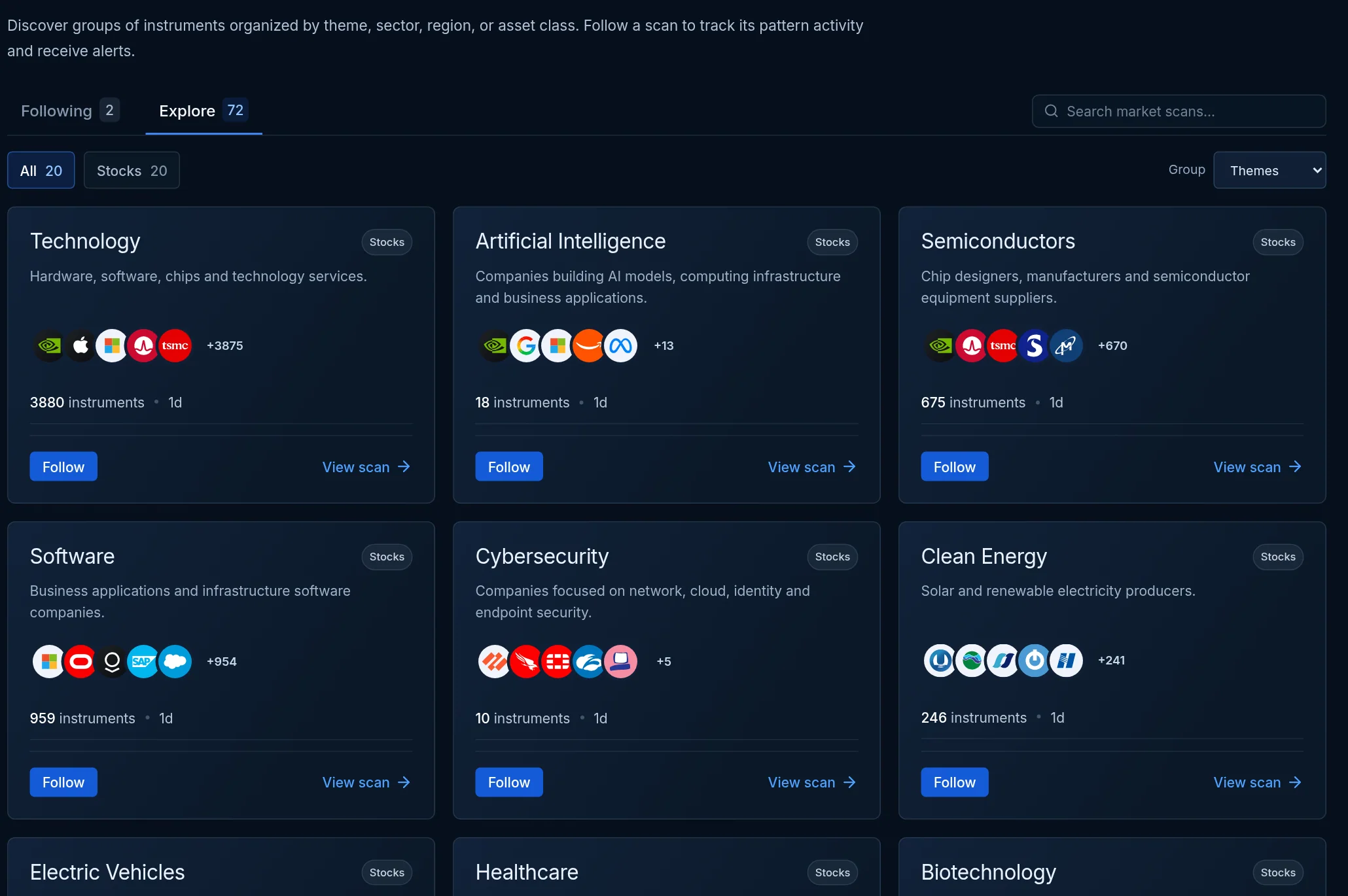
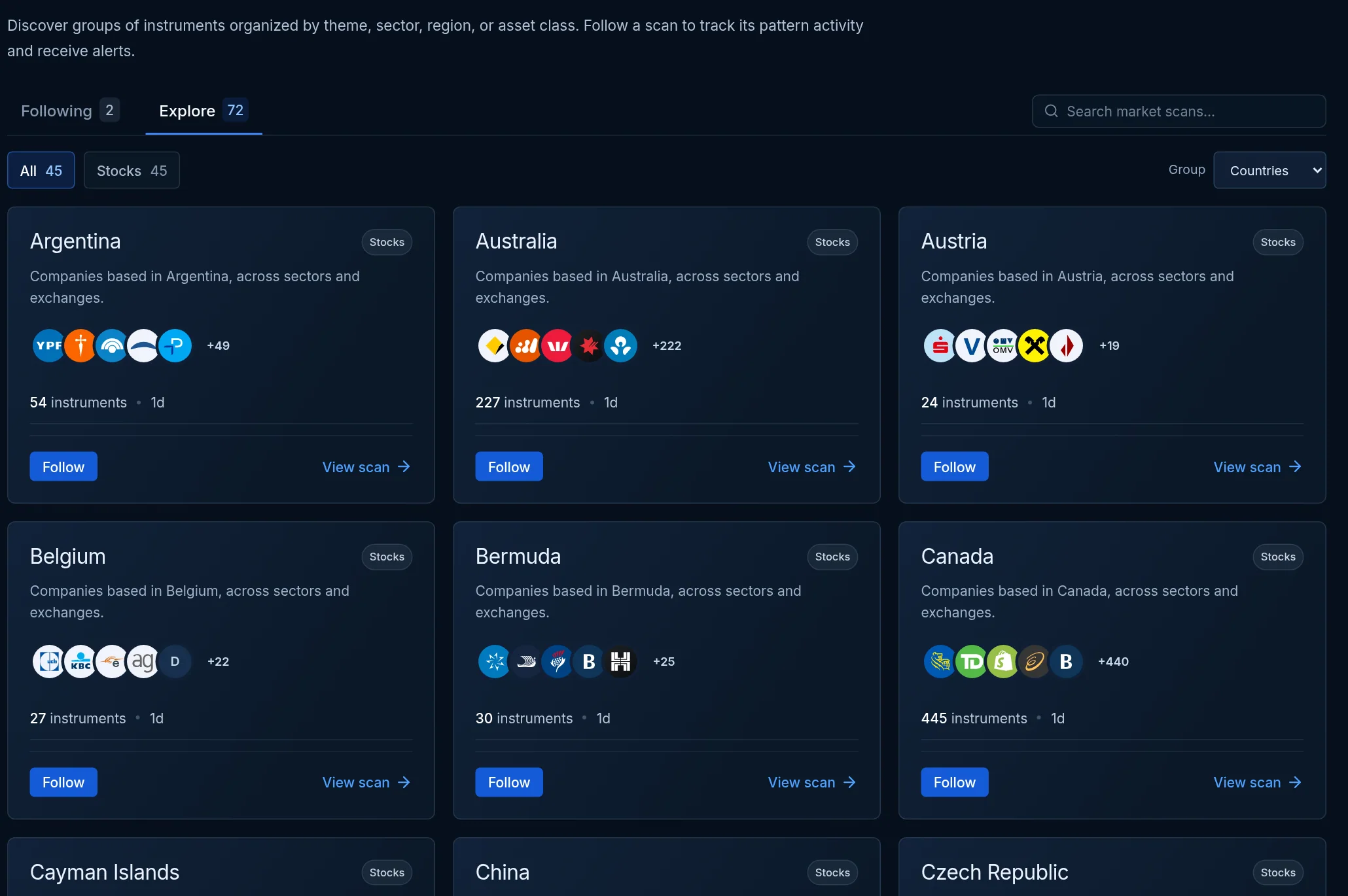
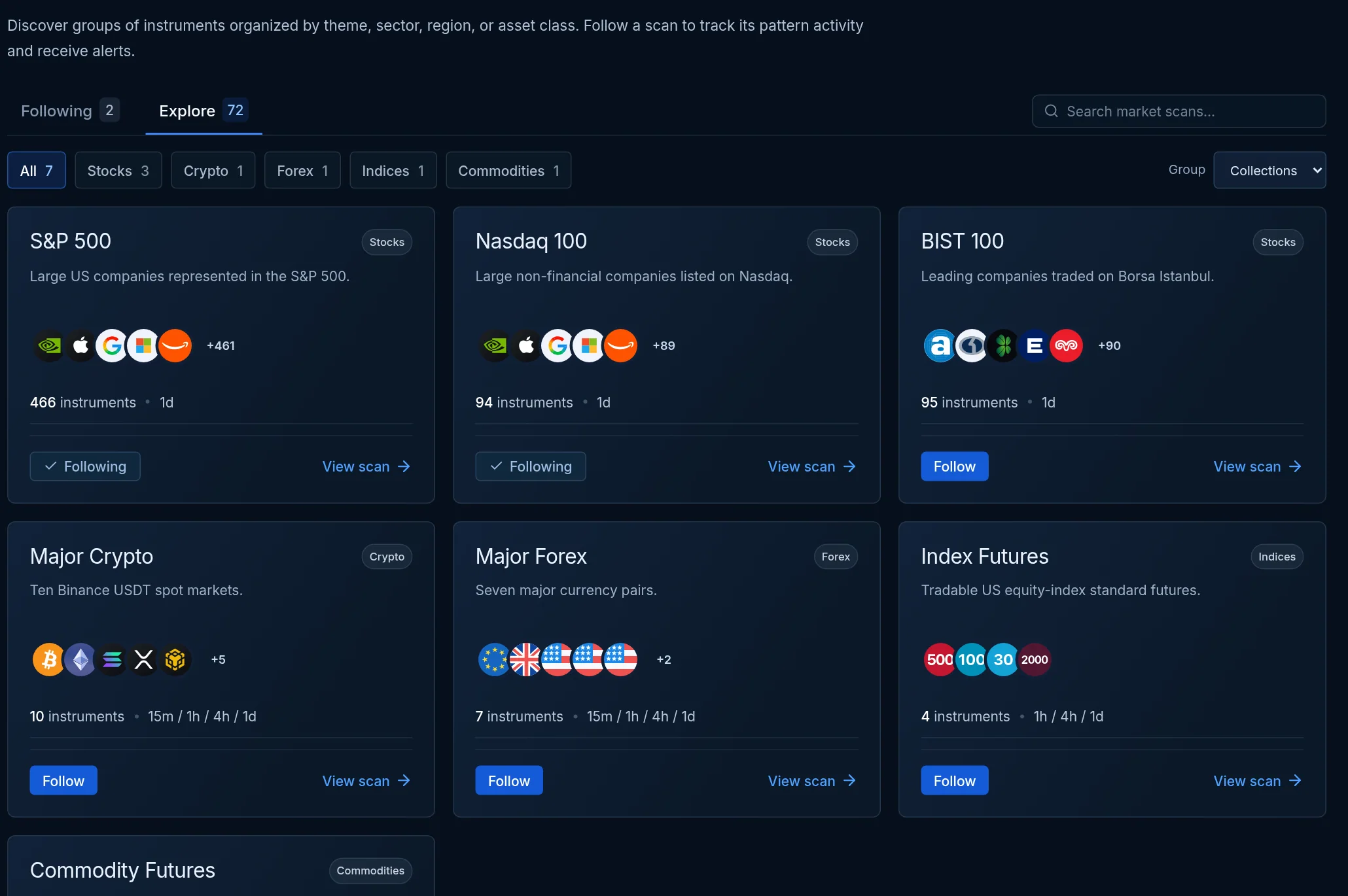
Browse ready-made market scans by theme, country, or collection. Explore stock groups such as semiconductors and the S&P 500, plus available crypto, forex, index futures, and commodity groups. Search the catalog, open a scan to inspect its instruments, and follow groups you want to monitor.
- Themes, countries, and index collections
- Crypto, forex, index futures, and commodities
- Followed scans and searchable catalog
02 / Instruments
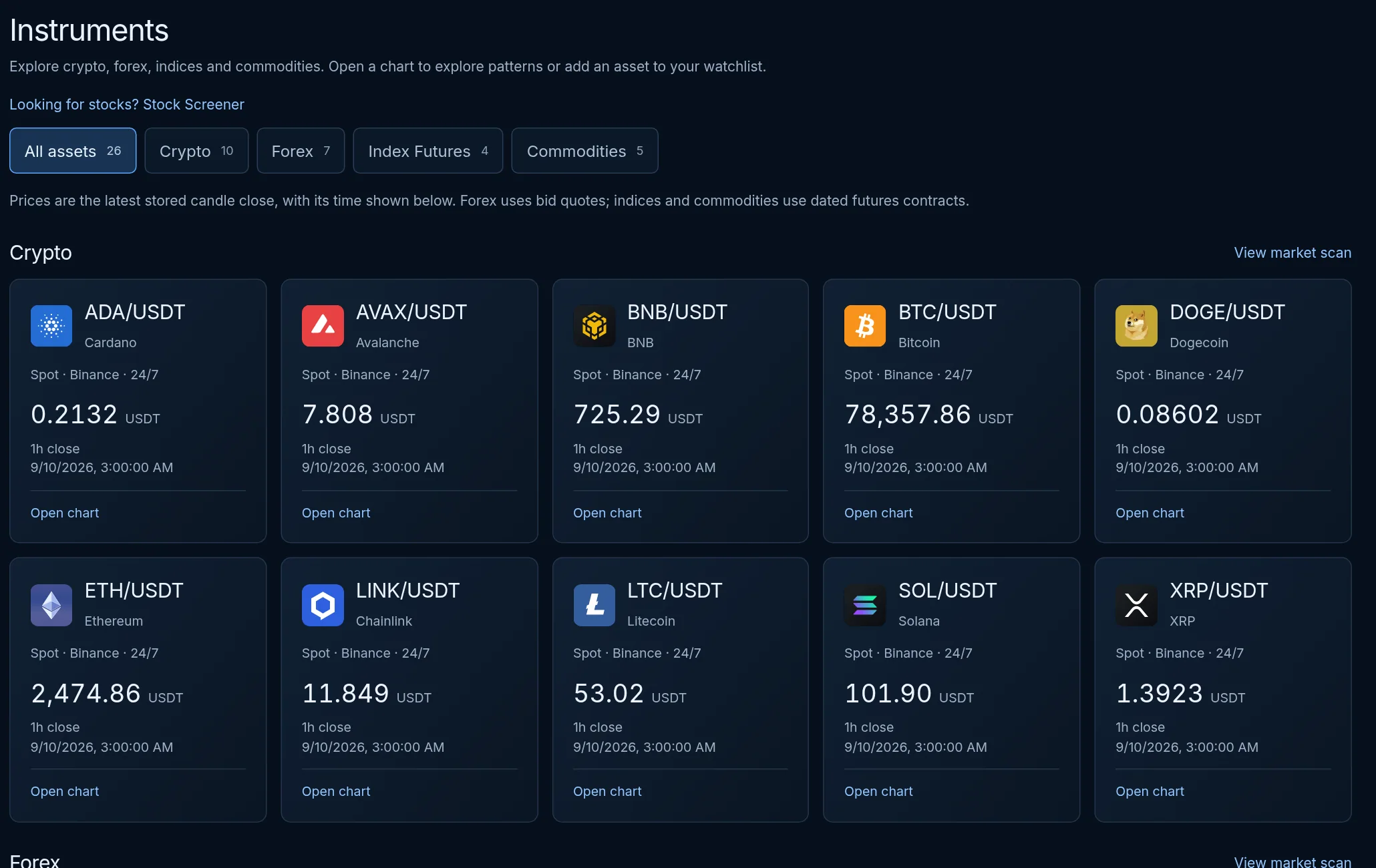
Browse symbols across asset classes.
Use the instrument directory to explore supported stocks, cryptocurrencies, forex pairs, index futures, and commodities. Open a symbol to inspect its chart and available data, or add it to a watchlist. Coverage and available intervals differ by instrument.
- Asset-class browsing
- Symbol search and ticker pages
- Direct path from instrument to watchlist
03 / Stock screener
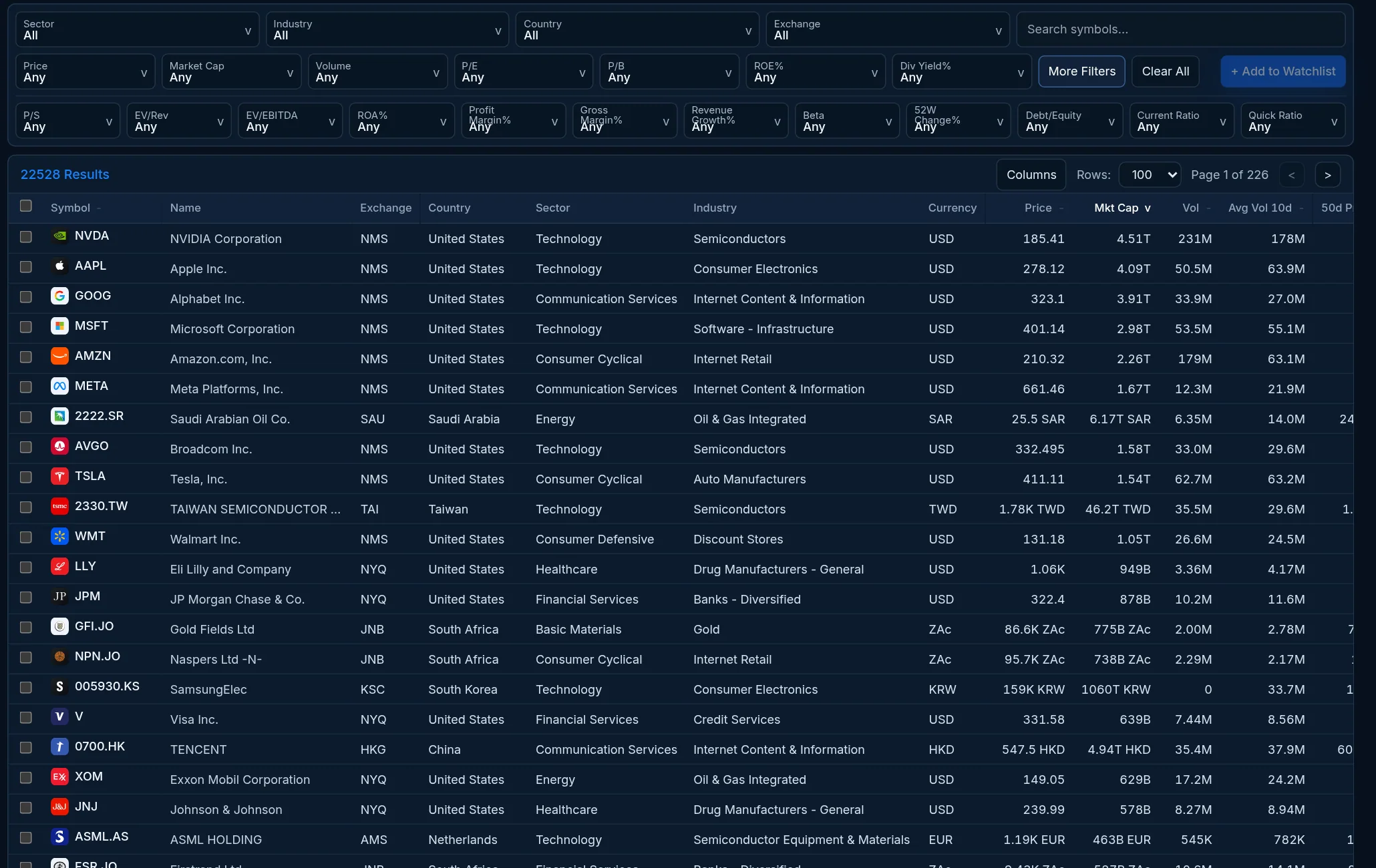
Filter stocks before opening charts.
Screen the stock universe with available market, price, technical, and company filters. Sort the results, inspect matching companies, and move from a row to its ticker workspace. Filters help narrow research; they do not rank investment quality.
- Technical and company filters
- Sortable result table
- Ticker research from each result
04 / Watchlists
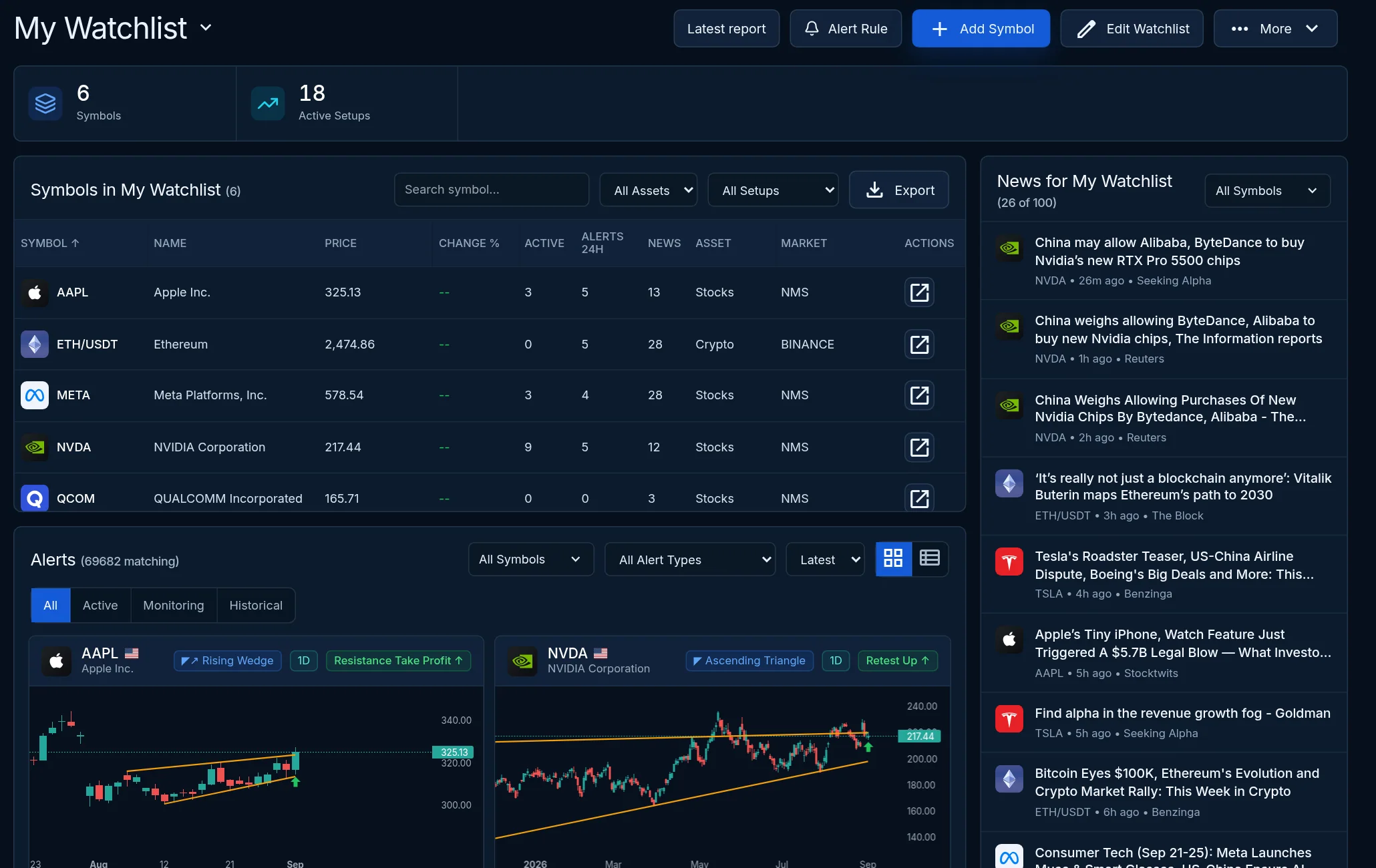
Keep your own symbols together.
Create watchlists for companies or markets you follow. Add symbols, review their active pattern setups and recorded alert cards, and see related stock news in the same workspace. Watchlists also provide a source for alert rules.
- Personal symbol lists
- Pattern activity and alert cards
- Related news where available
05 / Dashboard
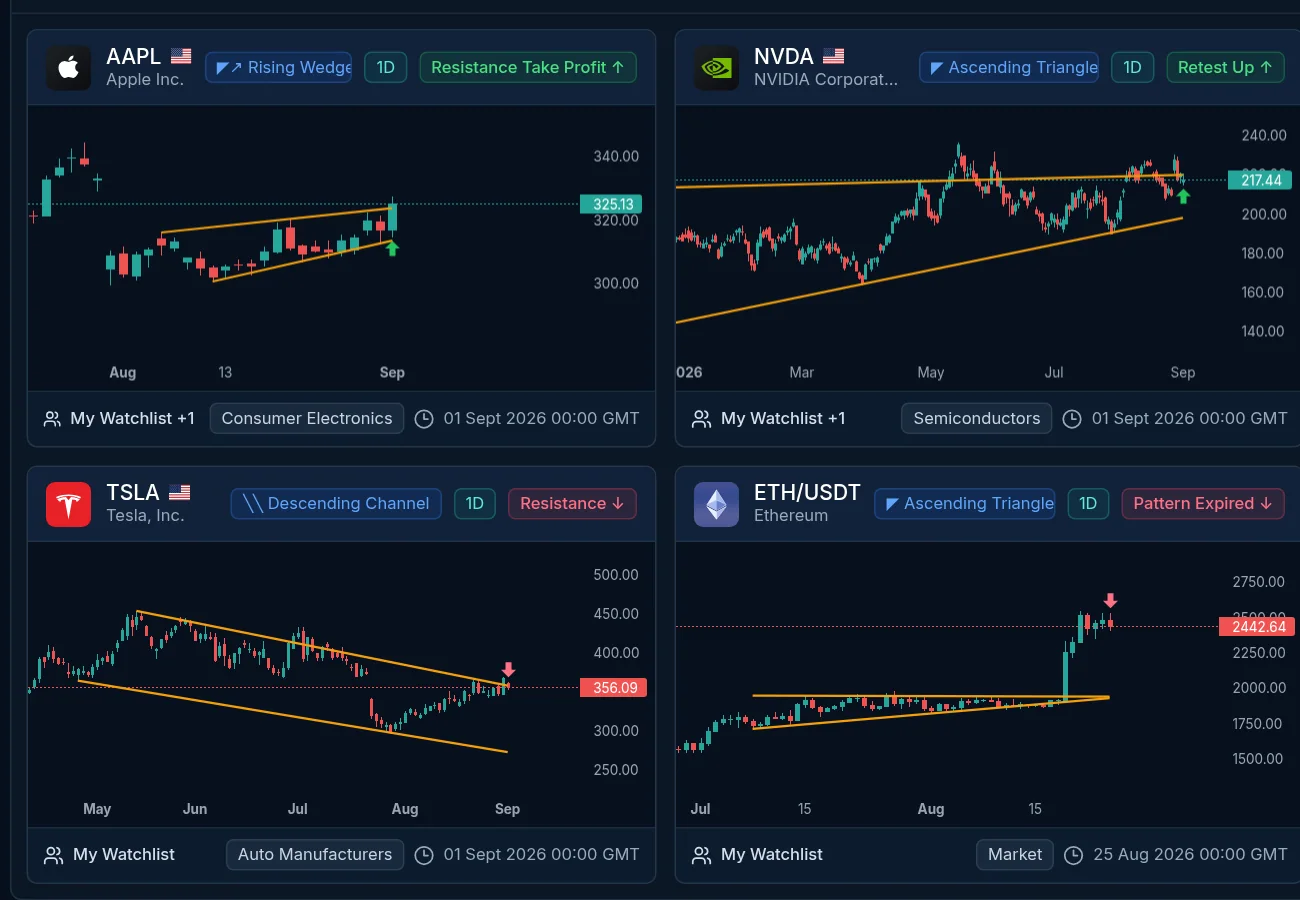
Start with the activity you follow.
The dashboard brings followed instruments, active setups, market scans, watchlists, and recorded pattern activity into one overview. Open an alert card to move from a summary into chart analysis. Counts and recent activity reflect the account and available scan data.
- Followed-market overview
- Chart cards for recorded activity
- Links to scans, watchlists, and alerts
06 / Chart patterns
See why a pattern was detected.
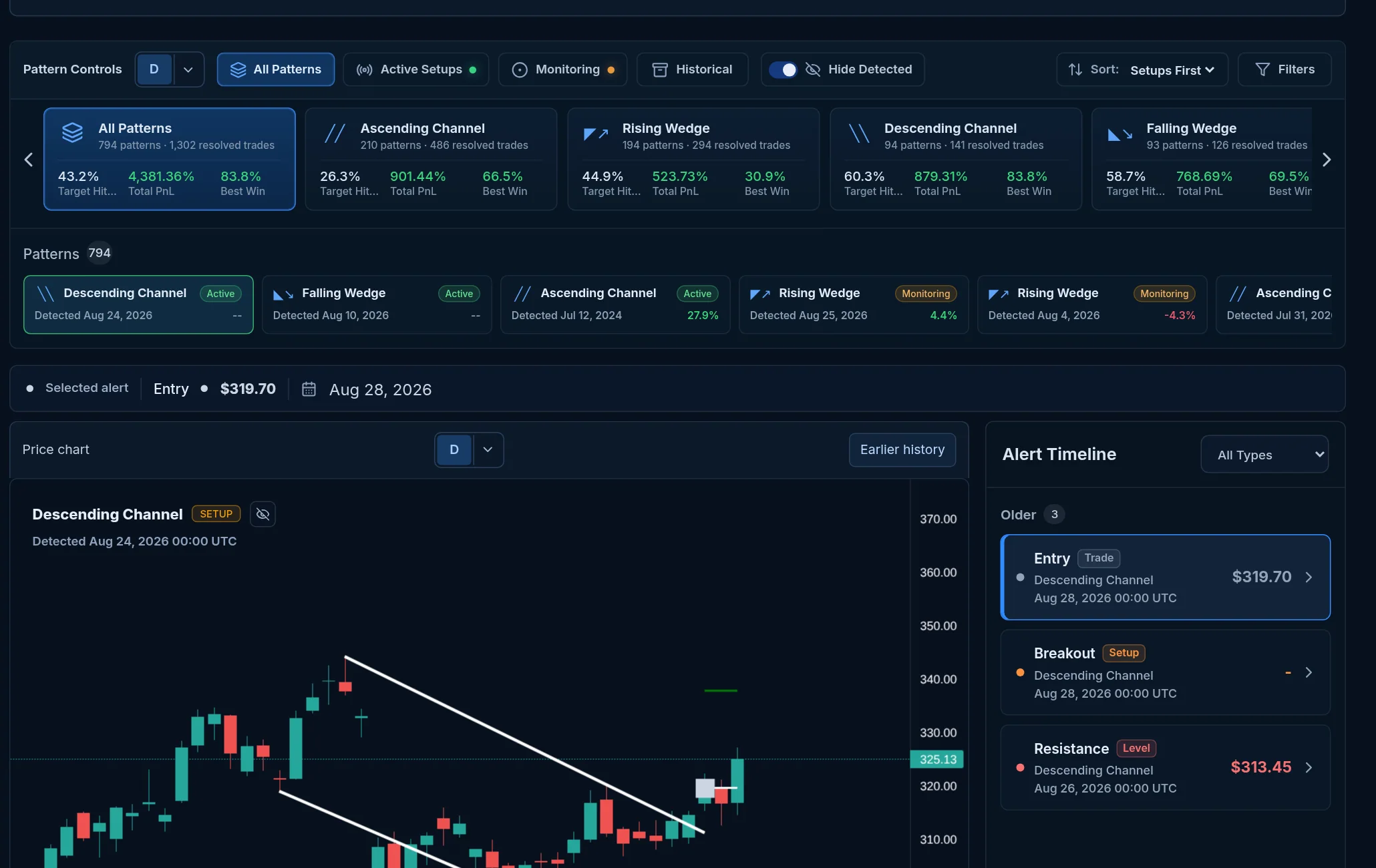
Open a ticker to inspect plotted pattern lines on an interactive price chart. Switch available timeframes, browse pattern families, and select a recorded setup to see its events on the chart and timeline. Channels, triangles, and wedges are among the supported structures.
- Chart overlays and pattern selector
- Formation, breakout, retest, and later recorded events
- Historical event timeline and available intervals
07 / Alert feed
Review detected events in context.
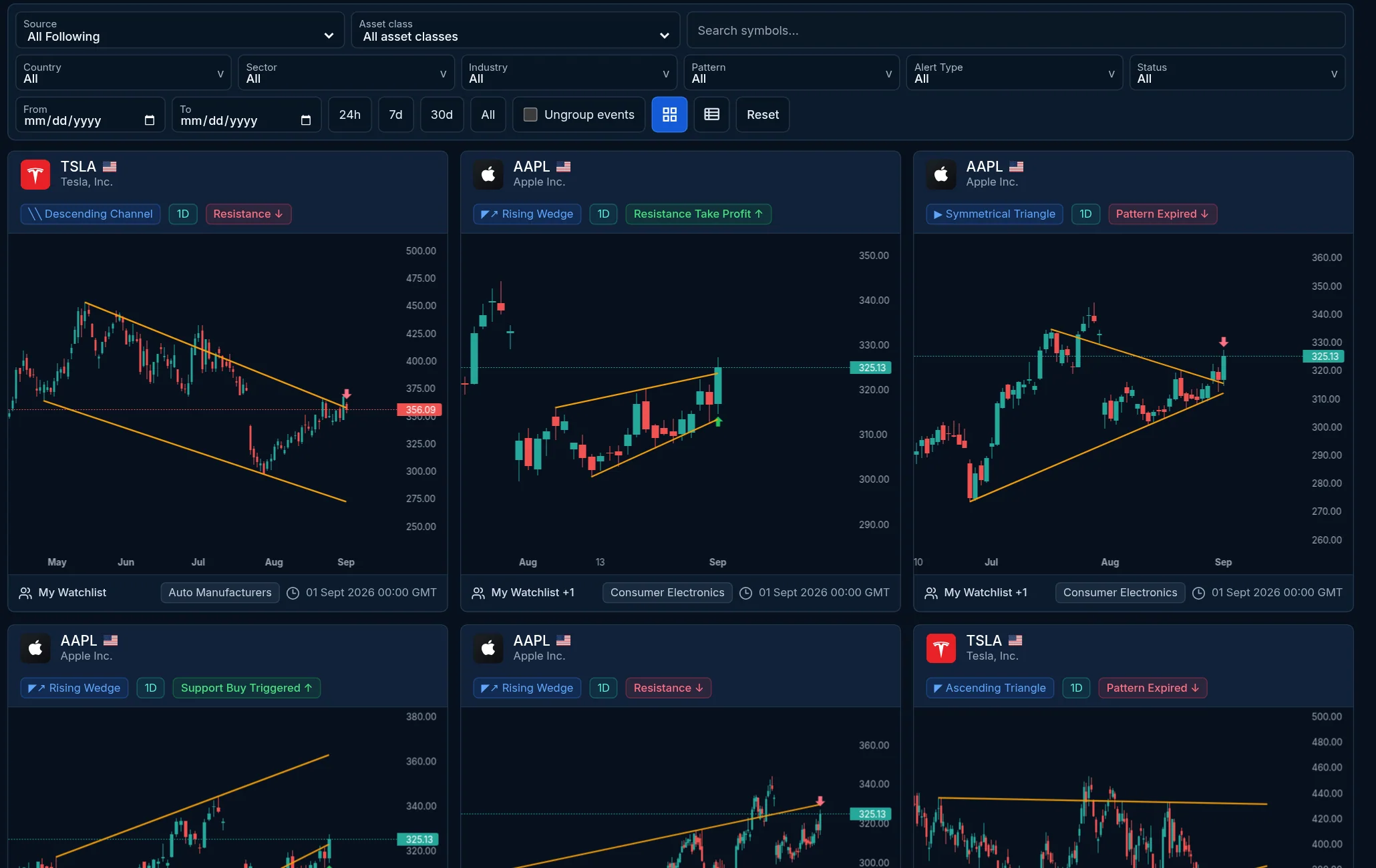
The alert feed collects recorded pattern events from supported sources. Filter by source, symbol, event, or time range, then open a card for the underlying chart. Cards show the instrument, pattern, interval, event, and recorded time so you can investigate what changed.
- Source, event, symbol, and date filters
- Chart previews on alert cards
- Links to ticker analysis
08 / Company research
Put the chart beside business context.
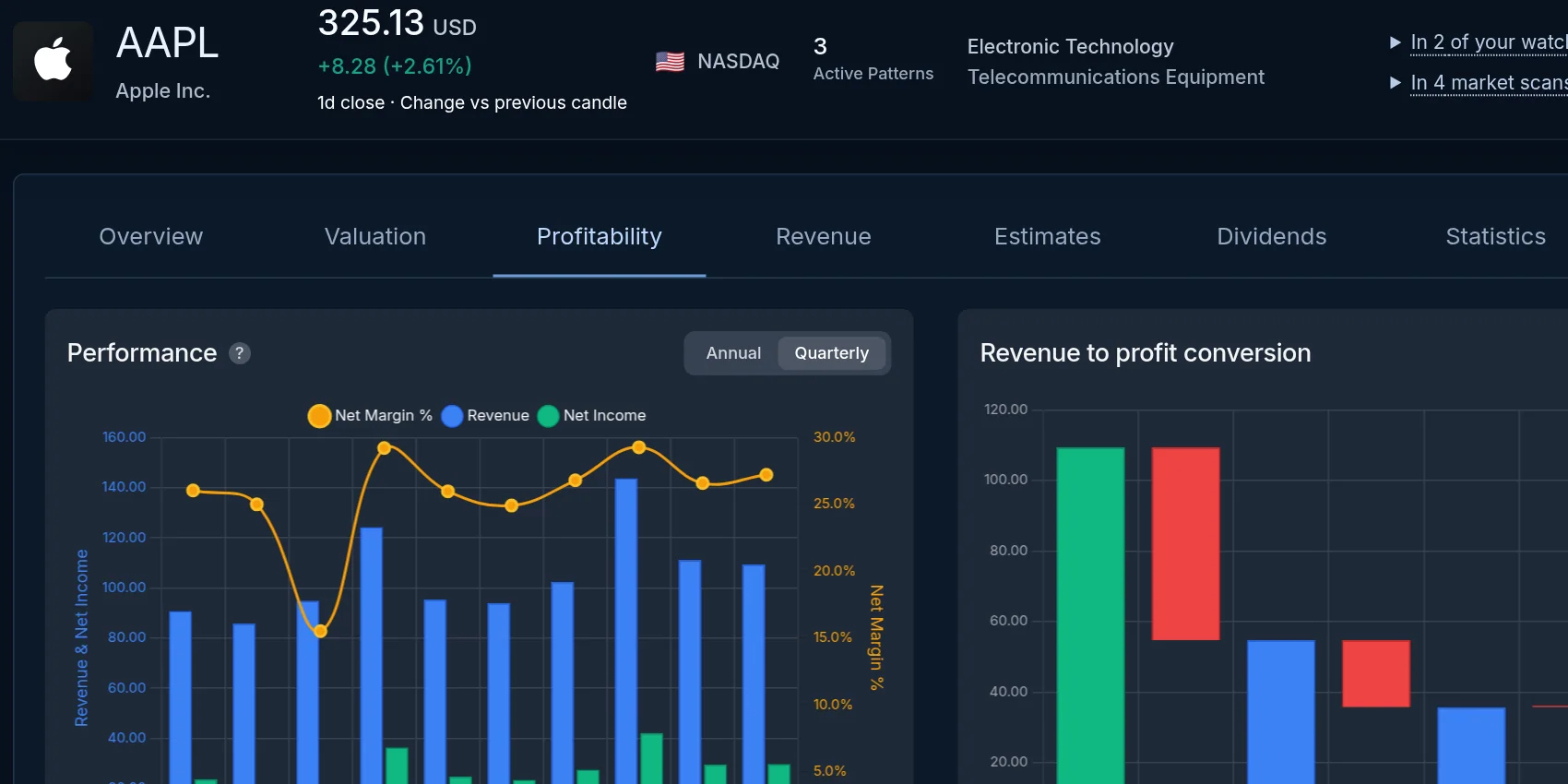
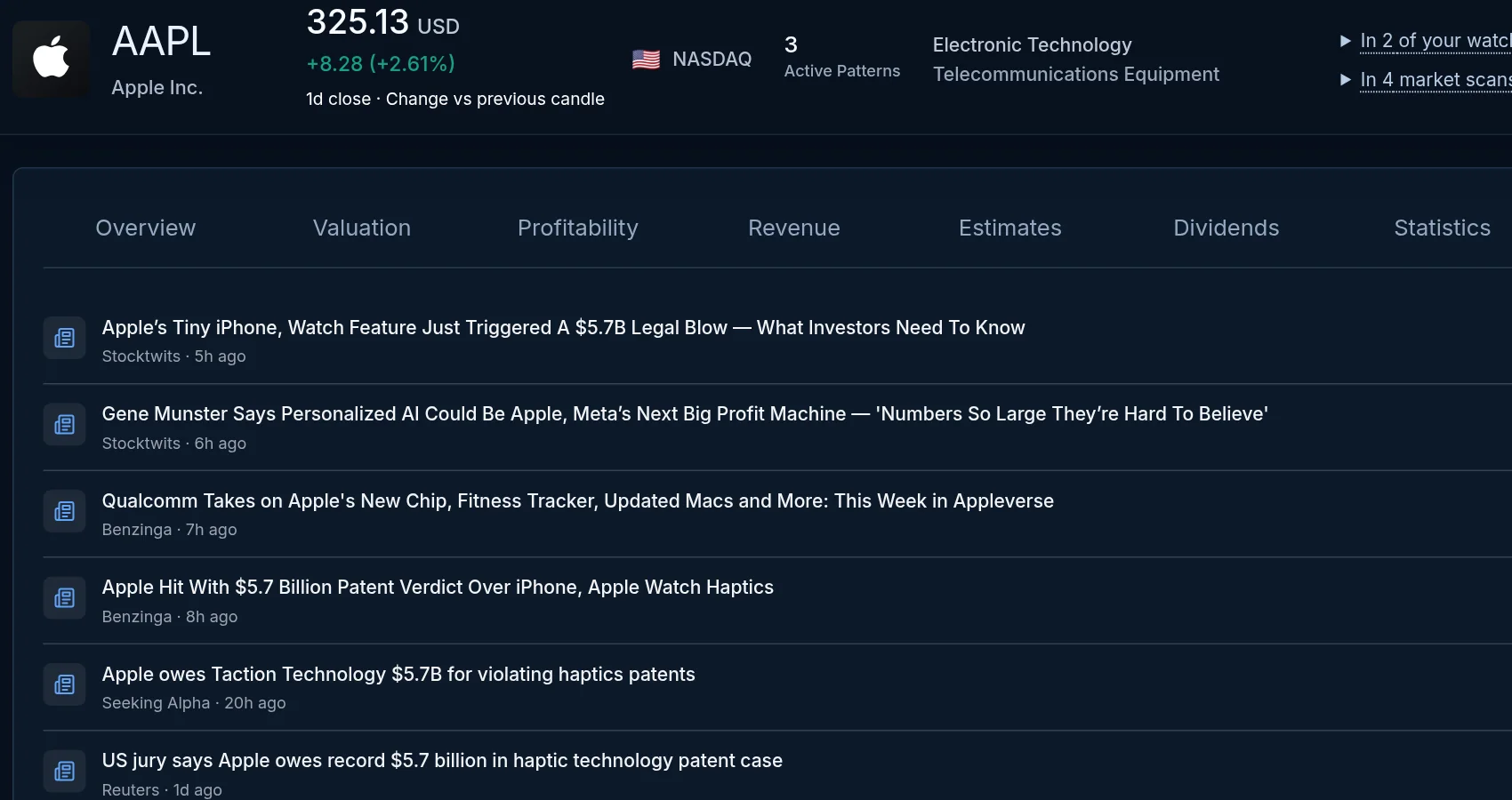
For stocks with available data, the ticker workspace includes company overview, valuation, profitability, revenue, estimates, dividends, statistics, and news tabs. Review financial trends and sourced headlines before interpreting a technical signal. Data availability varies by company and market.
- Company profile and key facts
- Financial charts and historical figures
- Company news with sources and publication times
09 / Alert rules
Choose the events you want to review.
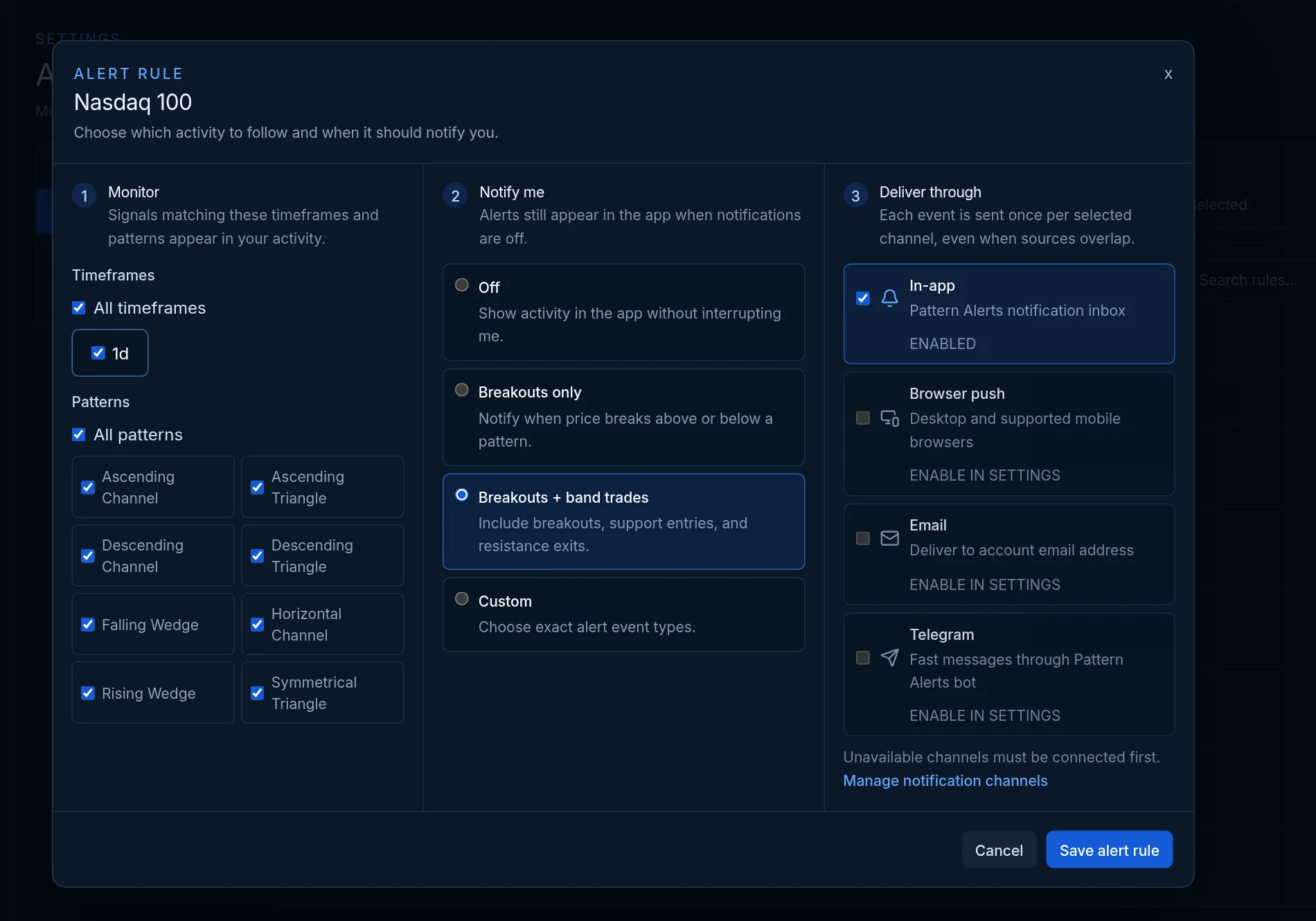
Configure rules for followed market scans and watchlists. Select timeframes, pattern families, and event types, then choose how alerts appear in the application. The rule editor distinguishes monitoring, notification criteria, and delivery. External email, Telegram, and browser delivery are shown in settings but are not connected yet.
- Rules per scan or watchlist
- Pattern, timeframe, and event selection
- In-app notifications
10 / Quiet hours
Control when notifications interrupt.
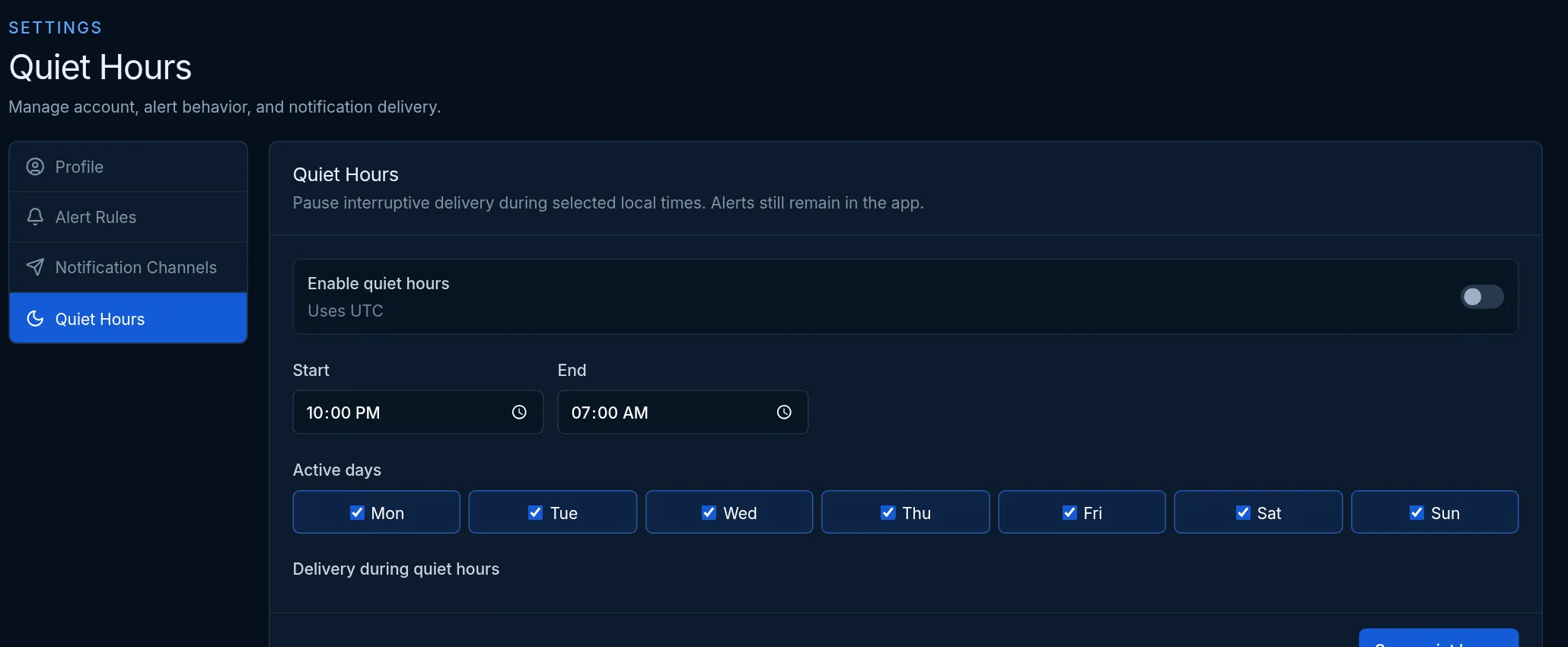
Set a quiet-hours window and active days in notification settings. This pauses delivery for supported rules during the selected period while alerts remain in the application for later review.
- Start and end times
- Selected weekdays
- In-app alert history remains available
11 / Reports
A guided review format is taking shape.
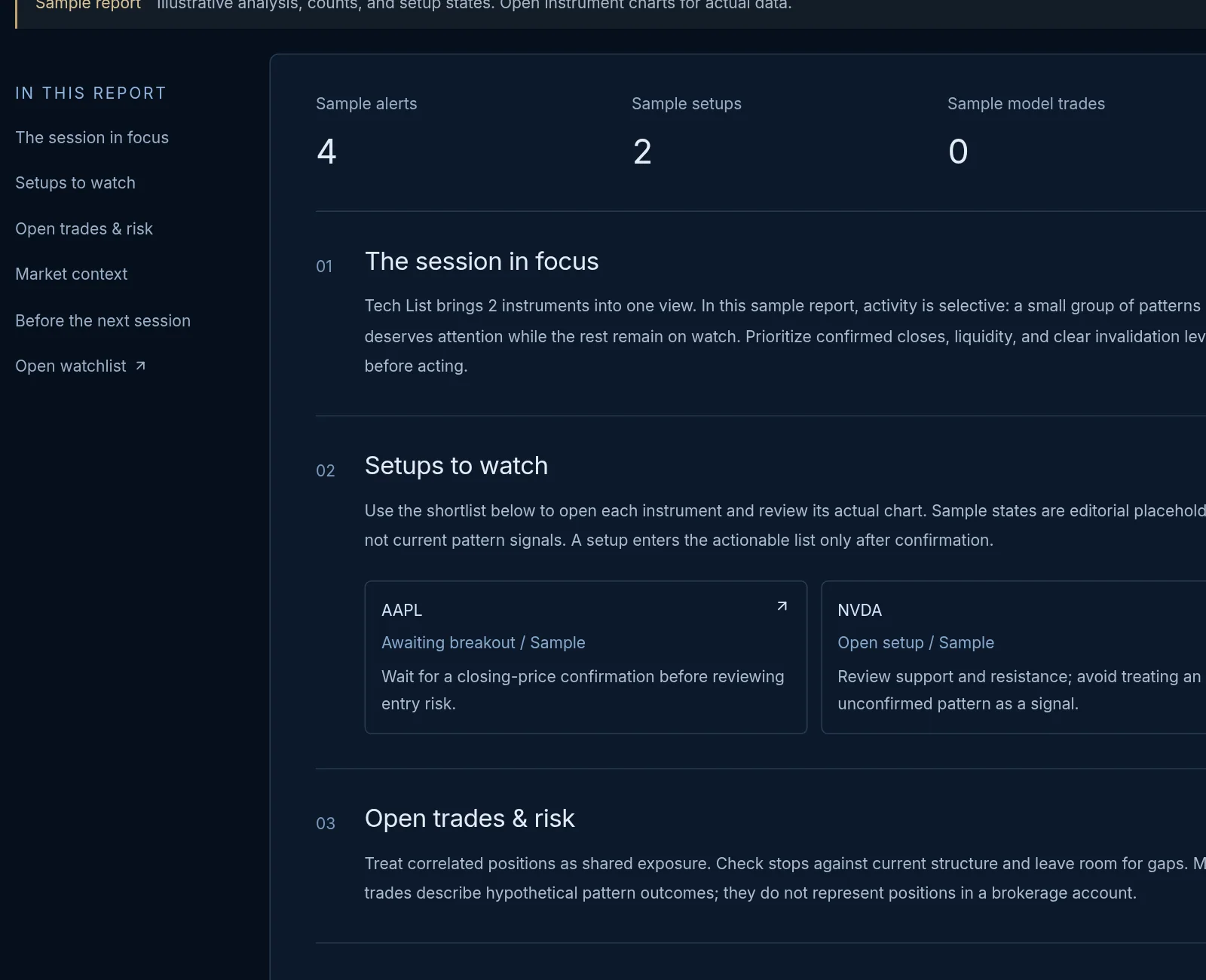
The reports area currently shows sample reports. Their sections organize alerts, setups, open trades and risk, and market context into a review sequence. These examples illustrate the planned workflow; they are not live personalized performance reports.
- Illustrative report layout
- Sample alert and setup summaries
- Market context and risk prompts